01
Choose by system
Separate computer and mobile builds to avoid mismatched files.
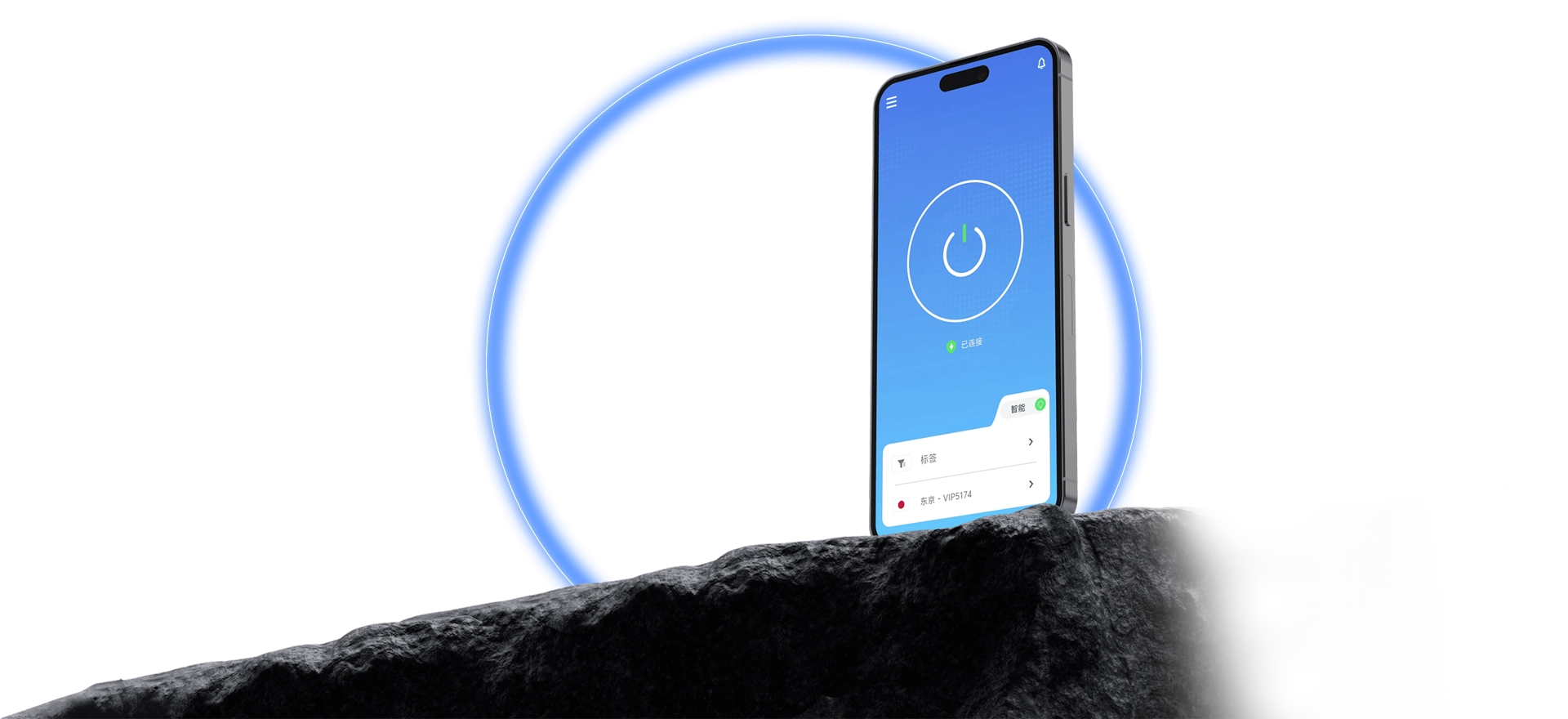
Windows, Mac, Android, iOS, and Linux. Choose the system, install, and sign in with clear connection steps.
QuickQ is a network connection client for multiple systems. Whether you use a computer, phone, or tablet, choose its platform on the download page, review requirements, and get the matching file. Once installed, sign in, select a route, and connect. A full tutorial is available for first-time use.
Find everyday information where you need it.
Separate computer and mobile builds to avoid mismatched files.
System version, memory, and free space are listed on the download page.
A tutorial explains launching the client through checking status.
Install on a new device, sign in, and review current plan status.
Open the download page at the matching device platform.
Confirm basic internet access before starting.
Read the system type in Settings and get its build.
Follow system prompts, open the app, and use your account.
Choose a route on the home screen and wait for connected status.
Choose Windows, Mac, Android, iOS, or Linux. Phones and tablets should match their operating system; check minimum versions on the download page.
Open the client, sign in, select an available route, and connect. Open another app after the connected state appears.
Usually not. Install the correct client and use the existing account. Simultaneous device limits follow the active subscription.
Choose a Windows, Mac, Android, iOS, or Linux client on the download page.